Networking cables

Coaxial Cables
Coaxial cables consist of a solid copper core surrounded by an insulator mainly made up of poly vinyl chloride (PVC) or Teflon. PVC is a plastic made from the chemical vinyl chloride. It is surrounded by a mesh like ground wires called the braiding or shielding and an outer cover known as a sheath.  
Twisted Pair Cables
A pair of cables twisted around each other forms a twisted pair cable. A number of twisted pair wires are placed inside a protective sheath to form a cable.
A pair of unshielded wires wound around each other is known as UTP. An UTP is a pair of copper wires wound by plastic insulators.
A pair of wires wound around each other and each pair is placed inside a protective foil wrap to protect it from crosstalk. These wires are placed in an outer copper braid to protect it from external interference.
Fiber optic medium
A fiber optic consists of a centre glass core through which signals passes. It is surrounded by a glass cladding. Sometimes the cladding is surrounded by PVC to increase the cable strength and provide support for the cladding is sometimes surrounded by metal fibers to give extra strength to the cable. It is finally surrounded by an outer cover known as sheath.
Types of Ethernet
Ethernet represents the cable (the ether) and the access protocol scheme. Cable is medium through which information is transmitted from one network to another. There are different types of cabling method used for Ethernet.
Length of the cable should be greater than required length as per the design requirement
Test every component after installation
For laying cables across the floor, it is recommended to cover the cable with cable
Lay cable away from sources of electrical interference
10Base-5
10Base-5 (Think coaxial cable) is also referred to as thick net. 10Base5 refers to Specifications of thick coaxial cable carrying Ethernet signals.

10Base-2
Coaxial cable includes one physical channel that carries signal surrounded (after a layer of insulation) by another concentric physical channel, both running along the same axis. 10Base-2 (thin coaxial cable) is also referred to as thin net.
10Base-T
10BASE-T (Unshielded twisted pair) is an implementation of Ethernet which allows stations to be attached via twisted pair cable. In 10Base-T adding and removing a terminal is simple and also cable breaks can be detected easily as it uses star topology.


HARD DISK DRIVE

       
Introduction:
A hard disk drive (HDD is a data storage device used for storing and retrieving digital information using rapidly rotating discs coated with magnetic material. An HDD retains its data even when powered off. Data is read in a random-access manner, meaning individual blocks of data can be stored or retrieved in any order rather than sequentially. An HDD consists of one or more rigid ("hard") rapidly rotating discs with magnetic heads arranged on a moving actuator arm to read and write data to the surfaces.


Introduced by IBM in 1956 HDDs became the dominant secondary storage device for general purpose computers by the early 1960s. Continuously improved, HDDs have maintained this position into the modern era of servers and personal computers. More than 200 companies have produced HDD units, though most current units are manufactured by SeagateToshiba and Western Digital. The two most common form factor for modern HDDs are 3.5-inch in desktop computers and 2.5-inch in laptops. HDDs are connected to systems by standard iHYPERLINK "http://en.wikipedia.org/wiki/Computer_interface"nterface cables such as SATA (Serial ATA), USB or SAS (Serial attached SCSI) cables.
Hard Disk Drive Types:
A modern PC uses one or more of the following hard disks:
External Hard Drives
Internal Hard Drives

Laptop Hard Drives
                                     
Partition for HDD
1.Primary Partition:
Windows operating systems must be located in a primary partition.
Only primary partitions can be used to boot the operating system.
2.Extended Partition:
A hard disk may contain only one extended partition.
the extended partition can be subdivided into multiple logical partitions (Other than  OS is a Extended Partition).
3.Logical Partition:
Linux operating systems can be installed into (and run from) logical partitions.
4.Active Partition:
Only one partition on a computer can be set as an active partition or bootable partition.
For example, if you are using Microsoft Windows the partition that contains Windows is the active partition. 
File system in HDD
1.FAT (File Allocation Table)
2.NTFS (New Technology File System)
FAT
NTFS
   Its not a security
    Its a security
   Partition size is max 32GB
    Partition size is 1 (Tera Bytes)
   Does not support  data comparison
   It support data compression
   Does not support  disk quota
   Its support disk quota
   Window OS conformability (95,98.ms-dos)
   Window OS conformability                  
  ( 2000,xp ,vista, win 7 )

Partitions and Drive Letters:
Active partition: The partition that needs to contain the OS’s files because the BIOS looks to this partition for them.
Master boot record (MBR): The area on a hard disk that contains boot file; this is the first sector on the disk.
Physical disk: A hard drive.
Disk partitioning: The act of dividing a hard disk drive into multiple virtual hard disk drives.
MBR- Master Boot Record:
The first sector of the Hard Disk.
    - Usually only 512 bytes.
Contains:
    - Table of primary partitions
    - Disk Signatures
    - Directions for starting the operating system.
HDD Capacity and Size Information:
When pure chasing a hard disk drive, the term megabytes, gigabytes or terabytes may be confusing terms. The following table gives you an example of each of these terms and how they compare to other sizes.
Term
Equal to
Bit
0 or 1
Kb(Kilobit)
1,024 bits
Byte
8 bits (approximately one character in a Word document)
KB(Kilobyte)
1,024 bytes
MB(Megabyte)
1,024 Kilobytes or 1,048,576 Bytes
GB(Gigabyte)
1,024 Megabytes or 1,073,741, 824 Bytes
TB(Terabyte)

1,024 Gigabytes or 1,099,511,627,776 Bytes


PB(Petabyte)

1,024 Terabytes or about 1,000,000,000,000,000 Bytes
EB(Exabyte)

1,024 Petabytes or about 1,000,000,000,000,000,000 Bytes

ZB(Zetabyte)

1,024 Exabytes or about 1,000,000,000,000,000,000,000 Bytes

YB(Yottabyte)

1,024 Zetabytes or about 1,000,000,000,000,000,000,000,000 Bytes

Troubleshooting:
you must troubleshoot the problem related to hard disk when the system does not start, the system displays error while booting,  or the hard disk  does not display the correct storage capacity.
SYSTEM Cannot Detect Hard Disk:
Restore the BIOS settings to factory default settings.
Check if the interface cable connecting the hard disk  to the motherboard is connected properly.
Check, if the power connector is properly connected to hard disk.
 Set the proper jumper settings if multiple hard disks are present.
Connect the hard disk using a different interface cable that you know is working.
Install the hard disk on a different systems to Check if it is working.
A Sound is coming from Hard Disk Drive:
The hard disk is making a buzzing or rattling noise. The drive is vibrating when it is in use.
Check whether the hard disk is mounted properly into the case. tighten the screws to hold the hard disk to the bay.
Remove all the connectors from HDD and reconnect them properly.
If hard disk is new and making a noise, then replace the hard disk.

KEYBOARD SHORTCUTS

 Keyboard Shortcuts (Microsoft Windows)

1. CTRL+C (Copy)
2. CTRL+X (Cut)
3. CTRL+V (Paste)
4. CTRL+Z (Undo)
5. DELETE (Delete)
6. SHIFT+DELETE (Delete the selected item permanently without placing the item in the Recycle Bin)
7. CTRL while dragging an item (Copy the selected item)
8. CTRL+SHIFT while dragging an item (Create a shortcut to the selected item)
9. F2 key (Rename the selected item)
10. CTRL+RIGHT ARROW (Move the insertion point to the beginning of the next word)
11. CTRL+LEFT ARROW (Move the insertion point to the beginning of the previous word)
12. CTRL+DOWN ARROW (Move the insertion point to the beginning of the next paragraph)
13. CTRL+UP ARROW (Move the insertion point to the beginning of the previous paragraph)
14. CTRL+SHIFT with any of the arrow keys (Highlight a block of text)
SHIFT with any of the arrow keys (Select more than one item in a window or on the desktop, or select text in a document)
15. CTRL+A (Select all)
16. F3 key (Search for a file or a folder)
17. ALT+ENTER (View the properties for the selected item)
18. ALT+F4 (Close the active item, or quit the active program)
19. ALT+ENTER (Display the properties of the selected object)
20. ALT+SPACEBAR (Open the shortcut menu for the active window)
21. CTRL+F4 (Close the active document in programs that enable you to have multiple documents opensimultaneou sly)
22. ALT+TAB (Switch between the open items)
23. ALT+ESC (Cycle through items in the order that they had been opened)
24. F6 key (Cycle through the screen elements in a window or on the desktop)
25. F4 key (Display the Address bar list in My Computer or Windows Explorer)
26. SHIFT+F10 (Display the shortcut menu for the selected item)
27. ALT+SPACEBAR (Display the System menu for the active window)
28. CTRL+ESC (Display the Start menu)
29. ALT+Underlined letter in a menu name (Display the corresponding menu) Underlined letter in a command name on an open menu (Perform the corresponding command)
30. F10 key (Activate the menu bar in the active program)
31. RIGHT ARROW (Open the next menu to the right, or open a submenu)
32. LEFT ARROW (Open the next menu to the left, or close a submenu)
33. F5 key (Update the active window)
34. BACKSPACE (View the folder onelevel up in My Computer or Windows Explorer)
35. ESC (Cancel the current task)
36. SHIFT when you insert a CD-ROMinto the CD-ROM drive (Prevent the CD-ROM from automatically playing)
Dialog Box - Keyboard Shortcuts
1. CTRL+TAB (Move forward through the tabs)
2. CTRL+SHIFT+TAB (Move backward through the tabs)
3. TAB (Move forward through the options)
4. SHIFT+TAB (Move backward through the options)
5. ALT+Underlined letter (Perform the corresponding command or select the corresponding option)
6. ENTER (Perform the command for the active option or button)
7. SPACEBAR (Select or clear the check box if the active option is a check box)
8. Arrow keys (Select a button if the active option is a group of option buttons)
9. F1 key (Display Help)
10. F4 key (Display the items in the active list)
11. BACKSPACE (Open a folder one level up if a folder is selected in the Save As or Open dialog box)

Microsoft Natural Keyboard Shortcuts
1. Windows Logo (Display or hide the Start menu)
2. Windows Logo+BREAK (Display the System Properties dialog box)
3. Windows Logo+D (Display the desktop)
4. Windows Logo+M (Minimize all of the windows)
5. Windows Logo+SHIFT+M (Restorethe minimized windows)
6. Windows Logo+E (Open My Computer)
7. Windows Logo+F (Search for a file or a folder)
8. CTRL+Windows Logo+F (Search for computers)
9. Windows Logo+F1 (Display Windows Help)
10. Windows Logo+ L (Lock the keyboard)
11. Windows Logo+R (Open the Run dialog box)
12. Windows Logo+U (Open Utility Manager)
13. Accessibility Keyboard Shortcuts
14. Right SHIFT for eight seconds (Switch FilterKeys either on or off)
15. Left ALT+left SHIFT+PRINT SCREEN (Switch High Contrast either on or off)
16. Left ALT+left SHIFT+NUM LOCK (Switch the MouseKeys either on or off)
17. SHIFT five times (Switch the StickyKeys either on or off)
18. NUM LOCK for five seconds (Switch the ToggleKeys either on or off)
19. Windows Logo +U (Open Utility Manager)
20. Windows Explorer Keyboard Shortcuts
21. END (Display the bottom of the active window)
22. HOME (Display the top of the active window)
23. NUM LOCK+Asterisk sign (*) (Display all of the subfolders that are under the selected folder)
24. NUM LOCK+Plus sign (+) (Display the contents of the selected folder)
25. NUM LOCK+Minus sign (-) (Collapse the selected folder)
26. LEFT ARROW (Collapse the current selection if it is expanded, or select the parent folder)
27. RIGHT ARROW (Display the current selection if it is collapsed, or select the first subfolder)
Shortcut Keys for Character Map
After you double-click a character on the grid of characters, you can move through the grid by using the keyboard shortcuts:
1. RIGHT ARROW (Move to the rightor to the beginning of the next line)
2. LEFT ARROW (Move to the left orto the end of the previous line)
3. UP ARROW (Move up one row)
4. DOWN ARROW (Move down one row)
5. PAGE UP (Move up one screen at a time)
6. PAGE DOWN (Move down one screen at a time)
7. HOME (Move to the beginning of the line)
8. END (Move to the end of the line)
9. CTRL+HOME (Move to the first character)
10. CTRL+END (Move to the last character)
11. SPACEBAR (Switch between Enlarged and Normal mode when a character is selected)

Main Window Keyboard Shortcuts
1. CTRL+O (Open a saved console)
2. CTRL+N (Open a new console)
3. CTRL+S (Save the open console)
4. CTRL+M (Add or remove a console item)
5. CTRL+W (Open a new window)
6. F5 key (Update the content of all console windows)
7. ALT+SPACEBAR (Display the MMC window menu)
8. ALT+F4 (Close the console)
9. ALT+A (Display the Action menu)
10. ALT+V (Display the View menu)
11. ALT+F (Display the File menu)
12. ALT+O (Display the Favorites menu)


1. CTRL+P (Print the current page or active pane)
2. ALT+Minus sign (-) (Display the window menu for the active console window)
3. SHIFT+F10 (Display the Action shortcut menu for the selected item)
4. F1 key (Open the Help topic, if any, for the selected item)
5. F5 key (Update the content of all console windows)
6. CTRL+F10 (Maximize the active console window)
7. CTRL+F5 (Restore the active console window)
8. ALT+ENTER (Display the Properties dialog box, if any, for theselected item)
9. F2 key (Rename the selected item)
10. CTRL+F4 (Close the active console window. When a console has only one console window, this shortcut closes the console)
Remote Desktop Connection Navigation
1. CTRL+ALT+END (Open the Microsoft Windows NT Security dialog box)
2. ALT+PAGE UP (Switch between programs from left to right)
3. ALT+PAGE DOWN (Switch between programs from right to left)
4. ALT+INSERT (Cycle through the programs in most recently used order)
5. ALT+HOME (Display the Start menu)
6. CTRL+ALT+BREAK (Switch the client computer between a window and a full screen)
7. ALT+DELETE (Display the Windows menu)
8. CTRL+ALT+Minus sign (-) (Place a snapshot of the active window in the client on the Terminal server clipboard and provide the same functionality as pressing PRINT SCREEN on a local computer.)
9. CTRL+ALT+Plus sign (+) (Place asnapshot of the entire client window area on the Terminal server clipboardand provide the same functionality aspressing ALT+PRINT SCREEN on a local computer.)

Microsoft Internet Explorer Keyboard Shortcuts
1. CTRL+B (Open the Organize Favorites dialog box)
2. CTRL+E (Open the Search bar)
3. CTRL+F (Start the Find utility)
4. CTRL+H (Open the History bar)
5. CTRL+I (Open the Favorites bar)
6. CTRL+L (Open the Open dialog box)
7. CTRL+N (Start another instance of the browser with the same Web address)
8. CTRL+O (Open the Open dialog box,the same as CTRL+L)
9. CTRL+P (Open the Print dialog box)
10. CTRL+R (Update the current Web )


RUN COMMAND part-1

Administrative Tools

Administrative Tools = control admintools
Authorization Manager = azman.msc
Component Services = dcomcnfg
Certificate Manager = certmgr.msc
Direct X Troubleshooter = dxdiag 
Display Languages = lpksetup
ODBC Data Source Administrator = odbcad32
File Signature Verification Tool = sigverif
Group Policy Editor = gpedit.msc
Add Hardware Wizard = hdwwiz.cpl
iSCSI Initiator = iscsicpl
Iexpress Wizard = iexpress
Local Security Settings = secpol.msc
Microsoft Support Diagnostic Tool = msdt
Microsoft Management Console = mmc
Print management = printmanagement.msc
Printer User Interface = printui
Problems Steps Recorder = psr
People Near Me = p2phost 
Registry Editor = regedit or regedt32
Resoure Monitor = resmon
System Configuration Utility = msconfig
Resultant Set of Policy = rsop.msc
SQL Server Client Configuration = cliconfg
Task Manager = taskmgr
Trusted Platform Module = tpm.msc
TPM Security Hardware = TpmInit 
Windows Remote Assistance = msra
Windows Share Folder Creation Wizard = shrpubw
Windows Standalong Update Manager = wusa
Windows System Security Tool = syskey
Windows Script Host Settings = wscript
Windows Version = winver
Windows Firewall with Advanced Security = wf.msc
Windows Memory Diagnostic = MdSched
Windows Malicious Removal Tool = mrt


Computer Management

Computer Management = compmgmt.msc or CompMgmtLauncher
Task Scheduler = control schedtasks
Event Viewer = eventvwr.msc
Shared Folders/MMC = fsmgmt.msc
Local Users and Groups = lusrmgr.msc
Performance Monitor = perfmon.msc
Device Manager = devmgmt.msc
Disk Management = diskmgmt.msc
Services = services.msc
Windows Management Infrastructure = wmimgmt.msc
Conrtol Panel
Control Panel = control
Action Center= wscui.cpl 
Autoplay = control.exe /name Microsoft.autoplay
Backup and Restore = sdclt
Create a System Repair disc = recdisc
BDE Administrator = bdeadmin.cpl
Color Management = colorcpl 
Credential Manager = control.exe /name Microsoft.CredentialManager
Credential Manager Stored User Names and Passwords = credwiz
Date and Time Properties = timedate.cpl
Default Programs = control.exe /name Microsoft.DefaultPrograms
Set Program Access and Computer Defaults = control appwiz.cpl,,3 or ComputerDefaults
Devices and Printers = control printers
Devices and Printers Add a Device = DevicePairingWizard
Display = dpiscaling 
Screen Resolution = desk.cpl
Display Color Calibration = dccw 
Cleartype Text Tuner = cttune 
Folders Options = control folders
Fonts = control fonts
Getting Started = GettingStarted
HomeGroup = control.exe /name Microsoft.HomeGroup
Indexing Options = control.exe /name Microsoft.IndexingOptions
Internet Properties = inetcpl.cpl
Keyboard = control keyboard
Location and Other Sensors = control.exe /name Microsoft.LocationandOtherSensors 
Location Notifications = LocationNotifications
Mouse = control mouse or main.cpl
Network and Sharing Center = control.exe /name Microsoft.NetworkandSharingCenter
Network Connections = control netconnections or ncpa.cpl
Notification Area Icons = control.exe /name Microsoft.NotificationAreaIcons
Parental Controls = control.exe /name Microsoft.ParentalControls
Performance Information = control.exe /name Microsoft.PerformanceInformationandTools
Personalization = control desktop
Windows Color and Appearance = control color
Phone and Modem Options = telephon.cpl
Power Configuration = powercfg.cpl
Programs and Features = appwiz.cpl or control appwiz.cpl
Optional Features Manager = optionalfeatures or control appwiz.cpl,,2
Recovery = control.exe /name Microsoft.Recovery
Regional and Language = intl.cpl
RemoteApp = control.exe /name Microsoft.RemoteAppandDesktopConnections
Sound = mmsys.cpl
Volume Mixer = sndvol
System Properties = sysdm.cpl or 
Windows logo key + Pause/Break
SP ComputerName Tab = SystemPropertiesComputerName
SP Hardware Tab = SystemPropertiesHardware
SP Advanced Tab = SystemPropertiesAdvanced
SP Performance = SystemPropertiesPerformance
SP Data Execution Prevention = SystemPropertiesDataExecutionPrevention
SP Protection Tab = SystemPropertiesProtection
SP Remote Tab = SystemPropertiesRemote
Windows Activation = slui
Windows Activation Phone Numbers = slui 4
Taskbar and Start Menu = control.exe /name Microsoft.TaskbarandStartMenu
Troubleshooting = control.exe /name Microsoft.Troubleshooting
User Accounts = control.exe /name Microsoft.UserAccounts
User Account Control Settings = UserAccountControlSettings
User Accounts Windows 2000/domain version = netplwiz or control userpasswords2
Encryption File System = rekeywiz
Windows Anytime Upgrade = WindowsAnytimeUpgradeui
Windows Anytime Upgrade Results = WindowsAnytimeUpgradeResults
Windows CardSpace = control.exe /name Microsoft.cardspace
Windows Firewall = firewall.cpl
WindowsSideshow = control.exe /name Microsoft.WindowsSideshow
Windows Update App Manager = wuapp
Accessories
Calculator = calc
Command Prompt = cmd
Connect to a Network Projector = NetProj
Presentation Settings = PresentationSettings
Connect to a Projector = displayswitch or 
Windows logo key + P
Notepad = notepad
Microsoft Paint = mspaint.exe
Remote Desktop Connection = mstsc
Run = 
Windows logo key + R
Snipping Tool = snippingtool 
Sound Recorder = soundrecorder 
Sticky Note = StikyNot 
Sync Center = mobsync
Windows Mobility Center (Only on Laptops) = mblctr or 
Windows logo key + X
Windows Explorer = explorer or 
Windows logo key + E 
Wordpad = write
Ease of Access Center = utilman or 
Windows logo key + U
Magnifier = magnify
Narrator = Narrator
On Screen Keyboard = osk
Private Character Editor = eudcedit
Character Map = charmap
Ditilizer Calibration Tool = tabcal
Disk Cleanup Utility = cleanmgr
Defragment User Interface = dfrgui
Internet Explorer = iexplore
Rating System = ticrf
Internet Explorer (No Add-ons) = iexplore -extoff
Internet Explorer (No Home) = iexplore about:blank
Phone Dialer = dialer
Printer Migration = PrintBrmUi
System Information = msinfo32
System Restore = rstrui
Windows Easy Transfer = migwiz
Windows Media Player = wmplayer
Windows Media Player DVD Player = dvdplay
Windows Fax and Scan Cover Page Editor = fxscover
Windows Fax and Scan = wfs
Windows Image Acquisition = wiaacmgr
Windows PowerShell ISE = powershell_ise
Windows PowerShell = powershell
XPS Viewer = xpsrchvw

Open Documents folder = documents
Open Pictures folder = pictures
Open Music folder = music
Open Videos folder = videos
Open Downloads folder = downloads
Open Favorites folder = favorites
Open Recent folder = recent
Logs out of Windows = logoff
Locks User Account = Windows logo Key + L
Device Manager = devmgmt.msc
Direct X Troubleshooter = dxdiag
Disk Cleanup Utility = cleanmgr
Defragment User Interface = dfrgui "New"
Ditilizer Calibration Tool = tabcal "New"
Disk Management = diskmgmt.msc
Disk Parmelonion Manager = diskpart
Display Properties = control desktop or desk.cpl
DPI Scaling = dpiscaling "New"
Driver Package Installer = dpinst "New"
Driver Verifier Utility = verifier or /reset
DVD Player = dvdplay "New"
Libraries = explorer or Windows key + E
Local Security Settings = secpol.msc
Local Users and Groups = lusrmgr.msc
Logs You Out Of Windows = logoff
Microsoft Support Diagnostic Tool = msdt "New"
Microsoft Paint = mspaint.exe
Mouse Properties = control mouse
Mouse Properties = main.cpl
Mobility Center (only on mobile) = mblctr or Windows key + X
Network Connections = control netconnections
Network Connections = ncpa.cpl
Notepad = notepad 
ODBC Data Source Administrator = odbcad32 "New"
Optional Features Manager = optionalfeatures "New"
On Screen Keyboard = osk or Windows key + U
Task Manager = taskmgr
Trusted Platform Module = TpmInit "New"
Utility Manager = utilman
User Accounts = netplwiz
Windows Activation = slui "New"
Windows Backup Utility = sdclt "New"
Windows Fax and Scan = wfs "New"
Windows Firewall = firewall.cpl
Windows Firewall with Advanced Security = wf.msc "New"
Windows Image Acquisition = wiaacmgr "New"
Windows Media Player = wmplayer
Windows Magnifier = magnify
Windows Management Infrastructure = wmimgmt.msc
Windows Update App Manager = wuapp "New"
Windows Standalong Update Manager = wusa "New'
Windows System Security Tool = syskey
Windows Share Creation Wizard = shrpubw "New"
Wordpad = write


SMPS

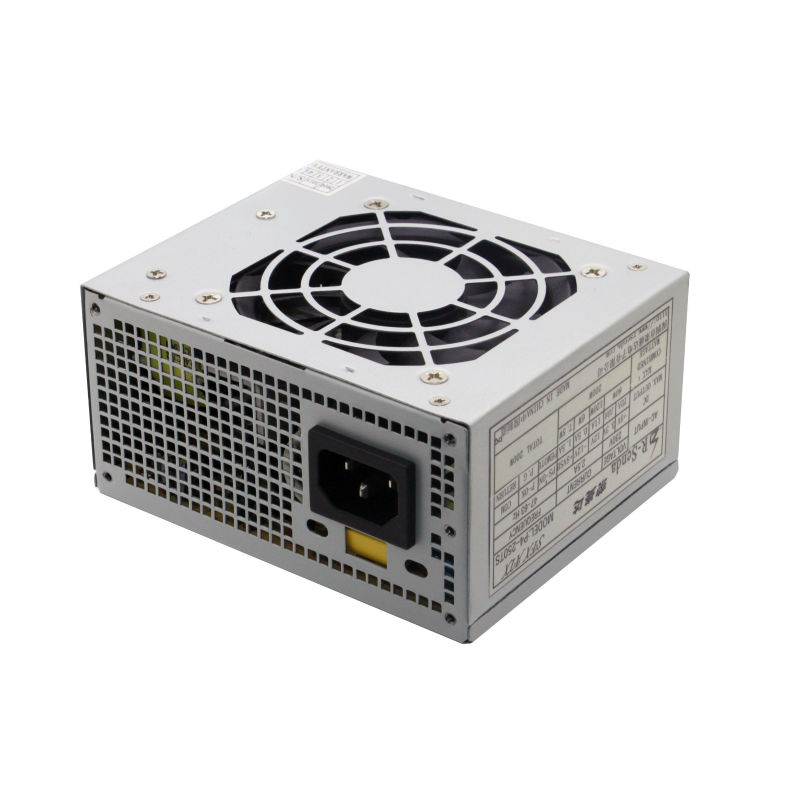
Smps stands for “switch mode power supply”. Power Supply is an electrical device that provides power to electronic device and circuits. Most of the electronic device require less power DC voltages as compared to the voltage supplied to home or office.
SMPS supplies power to different system components such as the motherboard and the device drives. The main components of SMPS are power connectors and power supply fan. Power connectors provide DC voltage to all the system components and power supply fan is used to keep the unti cool.
Introduction of smps :-
Switch mode power supply  :- 
Also called switching power supplies and sometimes chopper controlled power supplies, SMPSs use high frequency (relative to 50/60 Hz) switching devices such as Bipolar Junction Transistors (BJTs), MOSFETs, Insulated Gate Bipolar Transistors (IGBTs), or Thyristors (SCRs or triacs) to take directly rectified line voltage and convert it to a pulsed waveform.
Most small SMPSs use BJTs or MOSFETs. IGBTs may be found in large systems and SCRs or triacs are used where their advantages (latching in the on state and high power capability) outweigh the increased complexity of the circuitry to assure that they turn off properly (since except for special Gate Turn Off (GTO) thyristors, the gate input is pretty much ignored once the device is triggered and the current must go to zero to reset it to the off state.)
The input to the switches is usually either 150-160 VDC after rectification of 115 VAC, or 300-320 VDC after doubling of 115 VAC or rectification of 220-240 VAC. Up to this point, there is no line isolation as there is no line connected (large, bulky, heavy) power transformer.

Specifications of SMPS :-

To identify various SMPPs, you need to consider certain factors such as size, wattage and different connectors. The factors are      
Size–   power supplies are available in various sizes. Selecting a power supply, you need to select power supply of appropriate size which can fit in your system case.
Connectors  :- check for the available number of power supply connectors that can provide supply to all the device. More number of connectors are better.

Wattage :-  servers and desktop computers work in power rating. Power rating is measured in terms of watts. Rating for SMPS varies between 250w – 600w.  maximum power consumption occurs at start up time of SMPS. Computers have rating  between  250w – 500w and servers have rating between 400w -600w. it is always better to have excess wattage on power supply. 

     Working &functions of SMPS:-

A typical line connected power supply must perform the following functions:
  • Voltage conversion - changing the 115/230 VAC line voltage into one or more other voltages as determined by application.
  • Rectification - turning the AC into DC.
  • Filtering - smoothing the ripple of the rectified voltage(s).
  • Regulation - making the output voltage(s) independent of line and load variations.
  • Isolation - separating the supply outputs fro

Form factors of SMPS :-

The form factor of power supply represents the size and the shape of power supply. The different form factors of the power supply unit. They are
  • LPX
  • ATX
  • SFX
LPX :-    lpx is standard “low profile extended”. It is also known as slim line form factor because its cases are known as slim line cases. The main goal of this form factor is size reduction. Because of its small size and convenient rectangular shape, LPX can put into all sorts of cases. The LPX form factor is found in low-profile cases with a riser card arrangement for expansion cards where expansion boards run parallel to the mother board.
ATX :-  atx is standard “advanced technology extended”. The atx system uses new low profile extended(NLX) power supply, hence the ATX form factors are also known as ATX form factors. The ATX form factor does not have a power outlet to connect the power cord of the monitor to the power supply unit. This power supply fan draws air form outside the system and blows it inside the system to cool the system. This power supply unit uses the ATX connector to connect to the motherboard. In atx power supplies you will have 3.3v and +5v stand by which are not there in AT power supplies.
SFX  :-   sfx is standard “small form factor”. The sfx power supply unit has two fans to cool the whole system. This additional fan is placed on the top of the power supply. The internal fan of the sfx power supply is thermally speed- controlled. The output of sfx power supply unit is 90w and is used on smaller systems that do not require a lot of power. The sfx power supply unit uses the atx connector to connect to the motherboard. The one difference here is that the sfx power supply specification does not support the -5v compatibility voltage.
SMPS Voltages & Color Codes

LPX, ATX, SFX SMPS Connectors, voltages and functions


There are three types of SMPSs. They are LPX, ATX, SFX. These three types of SMPSs have different connectors and each wire has different voltages. Here the connectors and its voltages.
Output Voltages


Smps                                 LPX                   ATX                   SFX 
Red                                 +5v                    +5v                     +5v
Yellow                             +12v                  +12v                   +12v
Blue                                 -12v                  -12v                     -12v
White                               -5v                    -5v                       -5v
Black                                0v                      0v                       0v
Orange                            +5v                   +3.3v                   +3.3v
Green                               ----                    +5v                      +5v
Gray or Brown                 ----                    +5v                      +5v
Purple                               ----                    +5v                      +5v


Power supply control signals
Red                   : it is used for signal sending
Yellow               : It is used for motor running
White &Blue      : It is used for backward compatibility
Black                 : It is used for grounding purpose
Orange              : It is used for power good signal
Green               : It is used for power supply on in ATX
Gray & Brown   : It is used for power good signal in ATX
Purple               : It is used for auto shutdown in ATX
  Output voltages of smps :-      different components of the pc require different voltages. The power supply has to provide these voltages in varying amounts. Various voltages provided by the smps are:
-12v (Blue) – it is required by some of the serial ports. It is required by very few serial ports and is provided to maintain compatibility with such hardware.
-5 v(white)- it is required by some older floppy controllers and is a bus cards. It is provide for compatibility with older hardware.
 0 v(black)- it is required to complete a circuit with other voltages. It is ground voltages and is also known as earth.
+3.3 v(orange)- it is required by the processors, dims, pci/agp cards. This voltage was introduced in the atx form factor and is available in the atx/nlx,sfx and wtx form factor.
+5(red)- it is required by the disk drive logic, voltage regulators, is a cards, simms and other miscellaneous components of the system. This is the basic supply voltage for nearly all electronic components.
+12 v- It is required by motors in the system, from drive motors to cooling fans. It is also distributed to the to the system bus slots for usage by cards which may need it. 
   Power supply conrol signals :- 
             Earlier, mechinanical switches were used to turn the computer on and off. But now power supplies are operated using different control signals on the motherboard. The three control signals are :
PG signal (gray) :- indicates to the motherboard that all the supplies(+12v,+5v,-12v,-5v,-12v,-5v,and +3.3v) given are at proper level. It also informs the computer that power supply is working properly and prevents computer from operating on improper voltages levels.
Ps-on(green) :- controls the power supply and is part of atx standard. Power on carries a low-voltage logic-level signal from the motherboard to the power supply, that indicates when to turn on and off.
+5vsb(violet) :-  supplies line that is used to power standby circuitry, such as the ps_on circuit and the wake-on-lan. The +5vsb line is a +5v volt supply. It is always on when the pc power input is active, even if the system is turned off.
Connectors of smps :-    smps provides current to the motherboard, hard disk drive, and various other components of a system using the power connectors. Power connector is an electrical connector used to carry DC  voltages. There are 5 types of connectors.
 Atx power connector
                                                                                                                                                                                                                                                                                      
24 pin smps connector

Standard peripheral power connectors (molex)
Sata power connectors
Pci-e 6 pin connector
ATX power connector :-   This is a 20 pin connector with  6 types of voltages coming out of it. The atx style power connectors are for the atx/nlx power supply. Atx/nlx form factor uses the atx style power connectors. This style has a single 20- pin connector.the color on the pin denotes the color of the wires and gives the respective voltages.
 24 pin smps connector  :-
The 24 pin smps connector is built with atx style of power connector. This connector is used to provide power supply to the motherboard. That it is called as pc main power connector. The 24 pin smps connector has 4 additional pins which carry a different voltage level as compared to 20 pin connector. Pin number 11,12,and 23 carry the voltage +12 v, +3.3 v, +5 v respectively and pin number 24 is used as ground.    
Standard peripheral power connector (molex) :-  The disk drive power connector use 4 wire connector which are commonly called molex connectors. The hard disk drive, cd/dvd drives use molex connector.
                    The ATX 4 pin power supply connector is a standard motherboard power connector used to provide +12 VDC to the processor voltage regulator.

 Pin
Name
 Color
           Description
1
COM
Black
           Ground
2
COM
Black
          Ground
3
+12VDC
Yellow
         +12 VDC
4
+12VDC
Yellow
            +12 VDC
Sata power connector :-    The sata standard specifies a power connector which is different from those used by pat drives and many other computer components that is molex connector. It is a 15 pin connector. The large number of pins are used to supply three different voltages +3.3v,+5v,+12v.
Each voltage supplied by three pins ganged together and pins for ground. This is because the small pins cnnot supply sufficient current for some devices. One pin form each of the three voltages is also used for hot plugging.
Pci –e 6 pin connector : -  pci-e cable is used to provide extra 12 volt power to pci express expansion cards. Pci express motherboard slots can provide a maxium of 75 watts. Many video cards draw significantly more than 75 watts so the 6 pin  pci express power cable was created. These high power cards raw most of their power from the 12 volt supply. Some times called pci express cables or peg cables.

Troubleshooting of SMPS :-

A power supply unit is the vital component of a system that supplies power to various components of the system. The power supply unit consists of electronic components and may show some problems due to which the system may not start. Due to a faculty power supply, the other components of the system may also get damaged. As a result, troubleshooting the power supply problems is also get damaged an essential task for maintaining the system. 

Troubleshooting pc problems related to SMPS :-

You can troubleshoot basic system problems of the pc related to smps. The system may stop functioning after some time due to a power supply problem.

 trobuleshoot when pc did not starting:-
    I.     If your PC is not starting then it may be a problem related to power  supply.
 II.     Check the AC line.
III.     Check the power cord continuity check using multimeter and line voltage selector switch whether it has been set to 230VAC.
IV.     Open the system case.
 V.     Remove all the connectors from drives and motherboard.
VI.     Short pin no.14 & 15
VII.     Check the PG signal (+5 VDC Gray) if PG signal is OK means all the output voltages are at proper level.
VIII.     If the SMPS does not work when connected to motherboard then check whether there is a problem with SMPS.
In case of a defect or problem with power supply, it is not recommended that an inexperienced user open a power supply for repairing. The power supply has dangerously high voltage. Even after unplugging, power supplies can retain dangerous voltage and must be discharged (like a monitor) before servicing it. These internal repairs are not recommended unless the technician is specially trained to repair such components.

facebook
google-plus
twitter
pinterest